Accept Invite & Setup
This page covers the first steps to getting started with Polyguard: downloading the mobile app, accepting your invitation, and verifying your identity.
Step 1: Download the Polyguard Mobile App
We recommend installing the Polyguard Mobile app on your smartphone before you accept your invitation. If you don't have it yet when you scan the invite QR code, you'll be redirected to the Polyguard Mobile listing on the App Store or Google Play Store automatically.
- Open the App Store on your iPhone.
- Search for Polyguard Mobile.
- Tap Get to download and install the app.
- Open the app and allow camera and notification permissions when prompted.

Requirements
Polyguard Mobile requires iOS 16 or later.
- Open the Google Play Store on your Android phone.
- Search for Polyguard Mobile.
- Tap Install to download and install the app.
- Open the app and allow camera and notification permissions when prompted.

Requirements
Polyguard Mobile requires Android 10 or later.
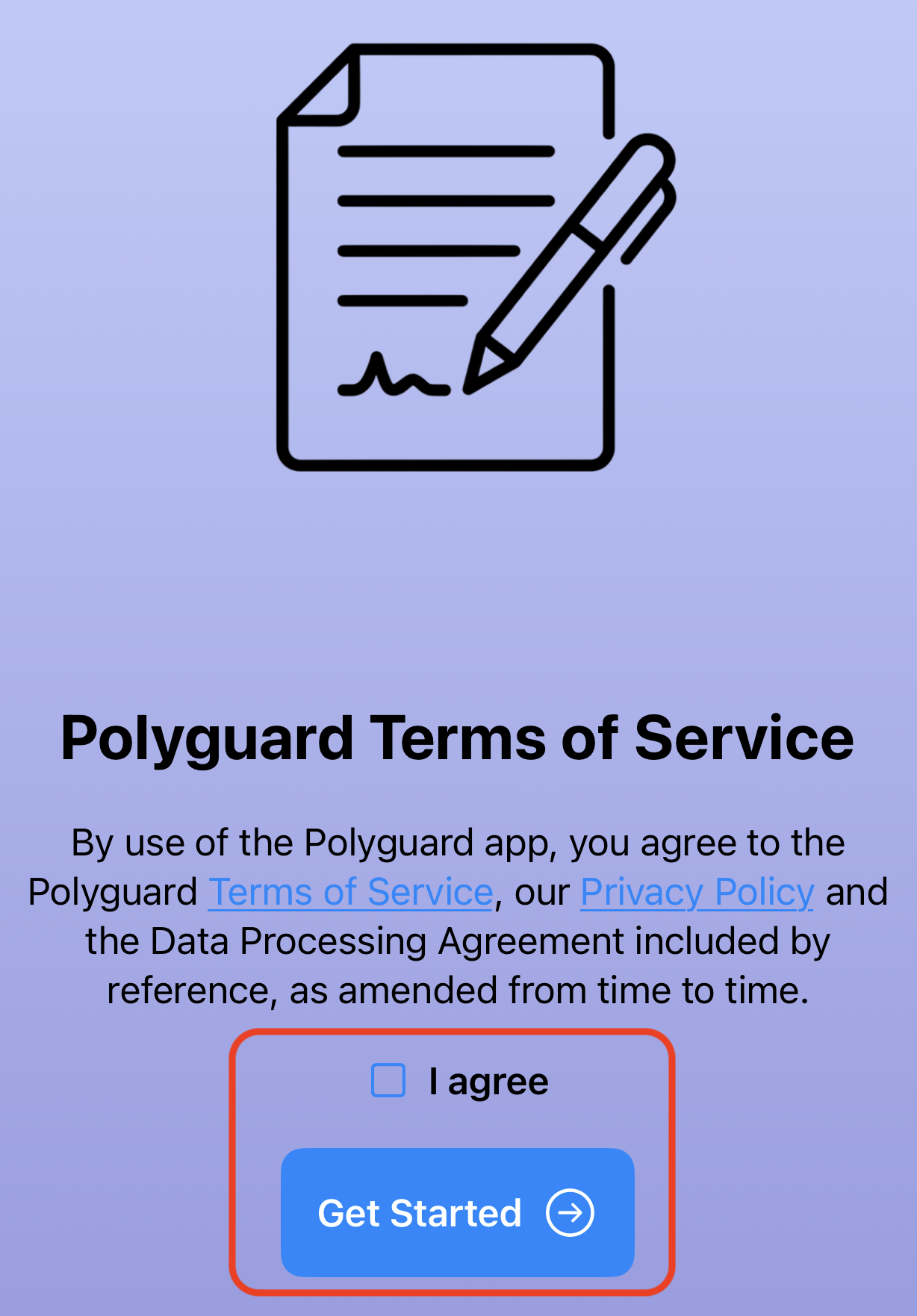
When you first open the app, you'll scroll through a short explanation of features, followed by the Terms of Service screen. Review and accept to proceed.
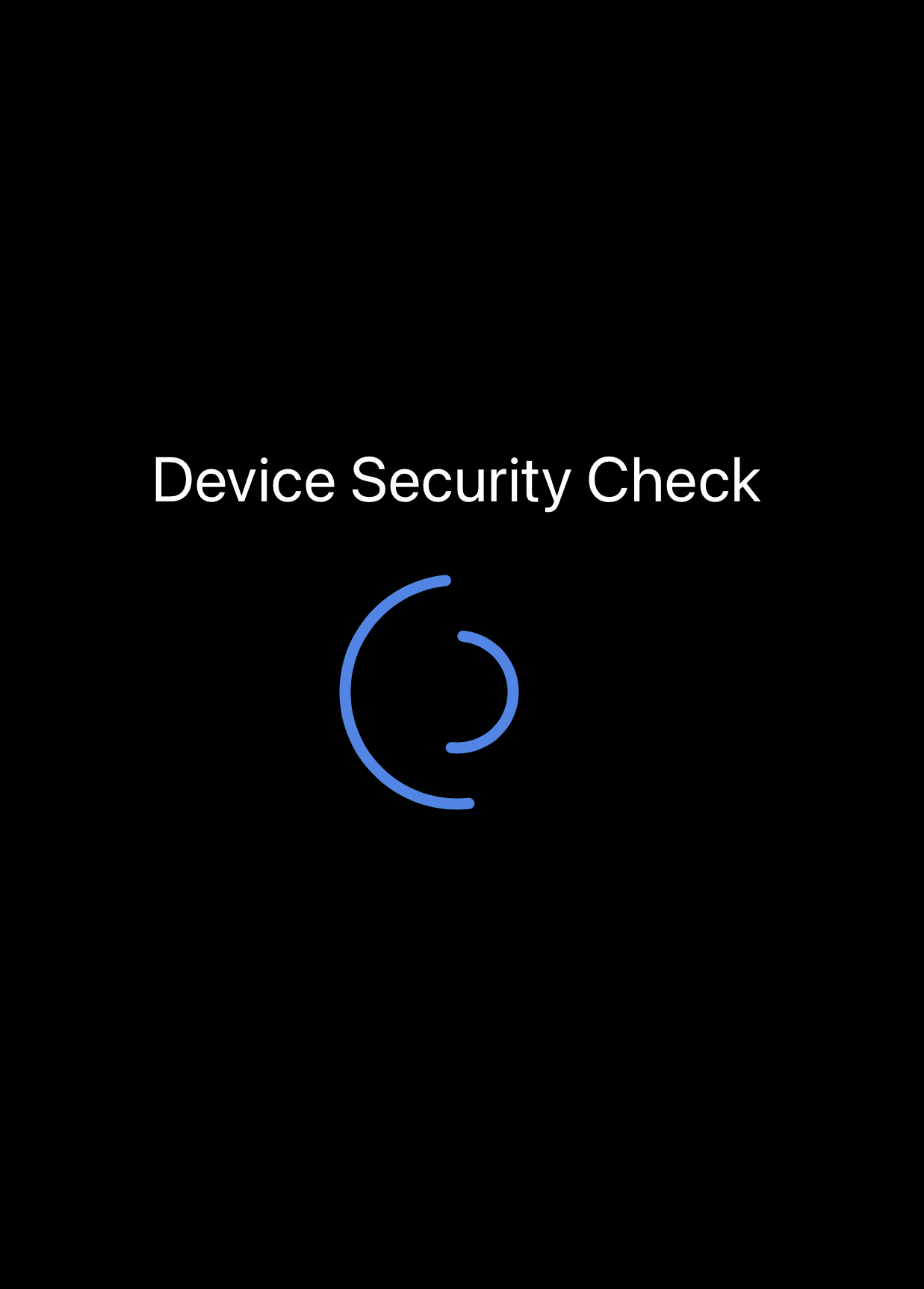
The app then runs a quick security scan to confirm your phone is safe to use (not jailbroken, not rooted, or uncompromised).
Step 2: Accept Your Invitation
Your administrator will share an invite link with you — usually by email, but it might also come by text message or be posted on an internal website. Here's how to accept it:
- Open the invite link on your computer or phone. You'll see an invite page with a QR code.
- Open the Polyguard Mobile app on your smartphone.
- Use the app to scan the QR code on the invite page. Hold your camera steady for about 5 seconds — the QR code will rapidly change while Polyguard performs a Presence Check. This uses optical distance bounding to verify that you are physically present at your device, not connecting through a VPN or remote desktop.
That's it — no email address or name to enter. The app handles the rest.

Can't find your invite link?
Ask your Polyguard administrator or IT team. They may have shared it via email, text, Slack, or an internal portal.
Step 3: Verify Your Identity
Identity verification is what makes Polyguard work. You only need to verify your identity documents once. After that initial verification, Polyguard simply performs a quick facial recognition each time to make sure you're still the same person.
The entire initial process takes less than 30 seconds.
- After scanning the invite QR code, the Polyguard Mobile app will prompt you to verify your identity.
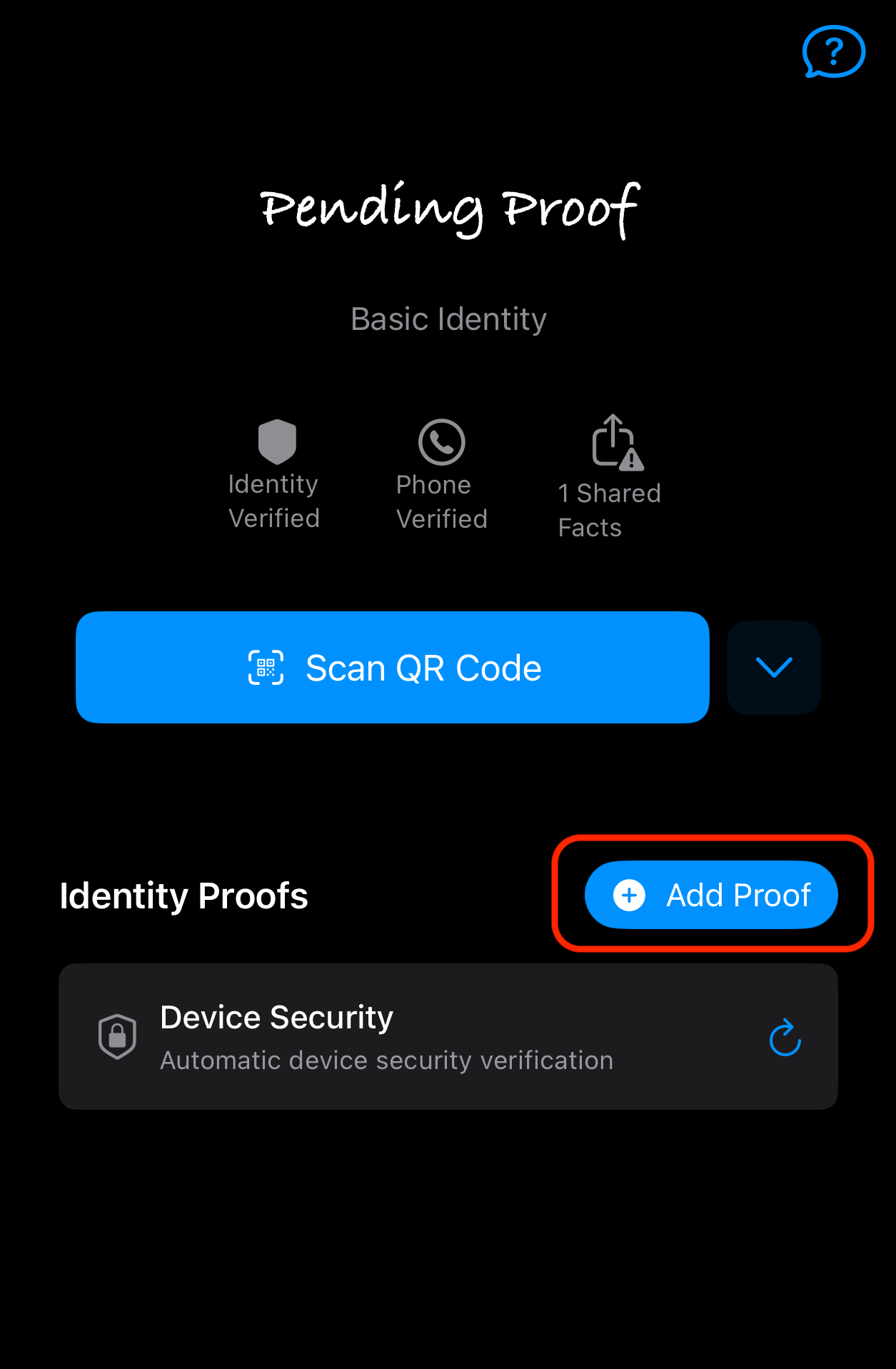
- Add your Geographic Location proof — this allows Polyguard to share your location at the administrative region level (state and country only, not city or precise coordinates) during verifications.
-
The app guides you through adding your identity proofs — phone number, face biometric, and government ID.
-
Select your ID type:
- Passport (recommended) — Passports are the strongest credential because Polyguard can read the NFC chip for cryptographic verification. The entire process is performed offline using Polyguard software on your phone.
- Driver's license or national ID card — If you don't have a passport, you can use another government-issued photo ID instead.
- Follow the on-screen instructions to capture photos of your ID using your phone's camera.
- Complete real-time facial recognition — look directly at the camera and follow any prompts.
- Verification completes in seconds. You'll see a confirmation screen right away.
After this one-time setup, future meetings only require a quick facial recognition check — no need to re-scan your documents.

Privacy: Your biometric data stays on your device
Polyguard is designed with your privacy in mind. Your biometric data — including your facial scan — is processed and stored only on your device. It is never uploaded to Polyguard's servers. Only the redacted proofs (not the underlying credentials or personal data) are shared with others.
Tips for a smooth verification
- Use a well-lit area so your ID and face are clearly visible.
- Remove glasses or hats before facial recognition.
- Make sure your ID is not expired.
- If verification fails, try again — you can re-scan your ID at any time.
After Verification: Success Page
Once your identity is confirmed, you'll land on a Success page with links to get started:
- Open Polyguard in Outlook — Schedule protected meetings from your calendar
- Open Polyguard in Teams — Access Polyguard within Microsoft Teams
- Open Polyguard in Zoom — Access Polyguard within Zoom
- Open the Web Console — Manage settings and view meeting records at console.polyguard.ai
Choose whichever platform you use for meetings to jump right in.
What's Next?
Now that you're set up, learn how to navigate into your meeting platform and the Console. Head to First Login to continue.
For more details about the types of identity proofs Polyguard supports, see Identity Credentials & Proofs.