Downloading the App
Welcome to Polyguard Mobile.
This guide walks you through setting up Polyguard and completing your first verification.
Step 1. Download the App
- Download Polyguard Mobile from the App Store or Google Play.
- Tap Download and open the app.
- Setup only takes a 1-2 minutes!
Sent a Trust Check link on an iPhone?
You don't need to download the app. When you open the link, your phone shows the Polyguard App Clip automatically.
Step 2. Consent Agreement
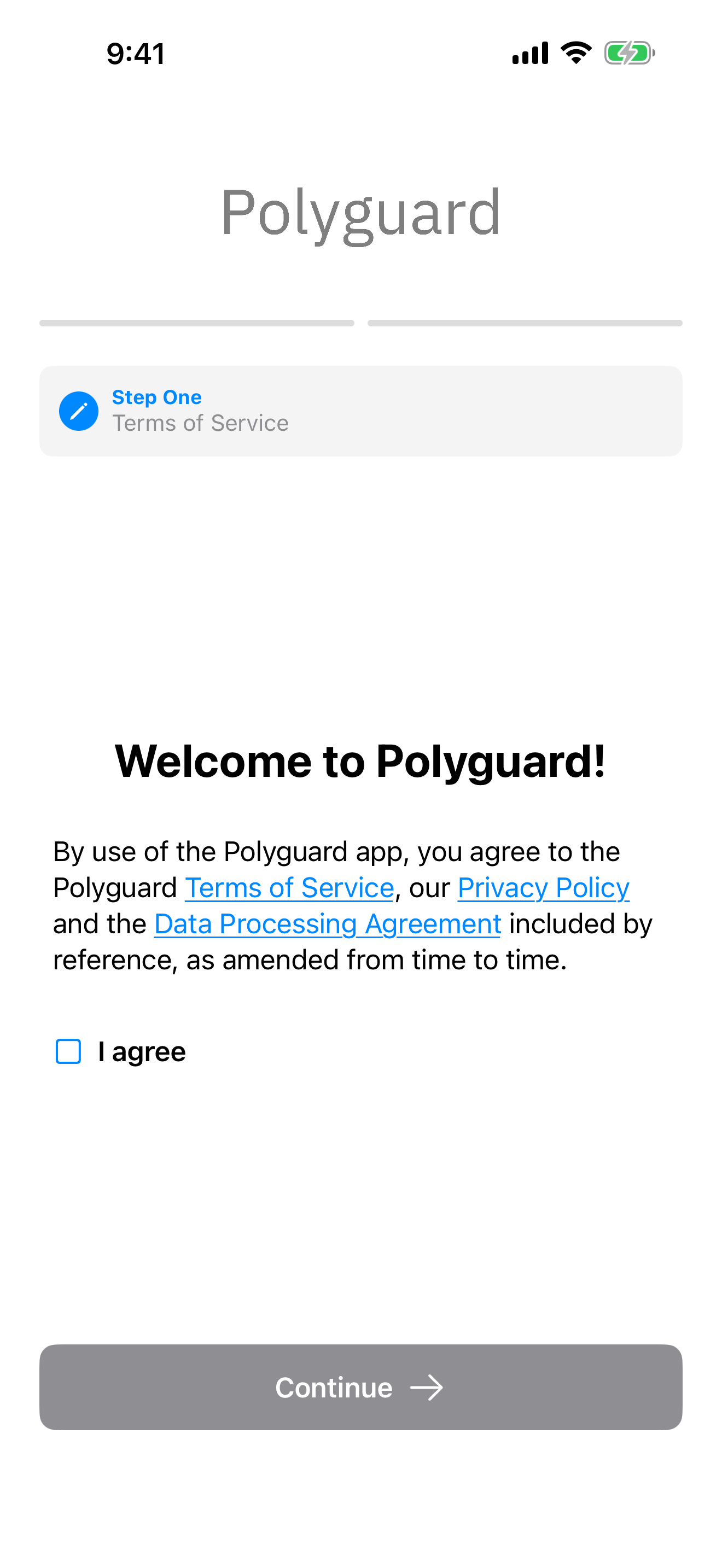
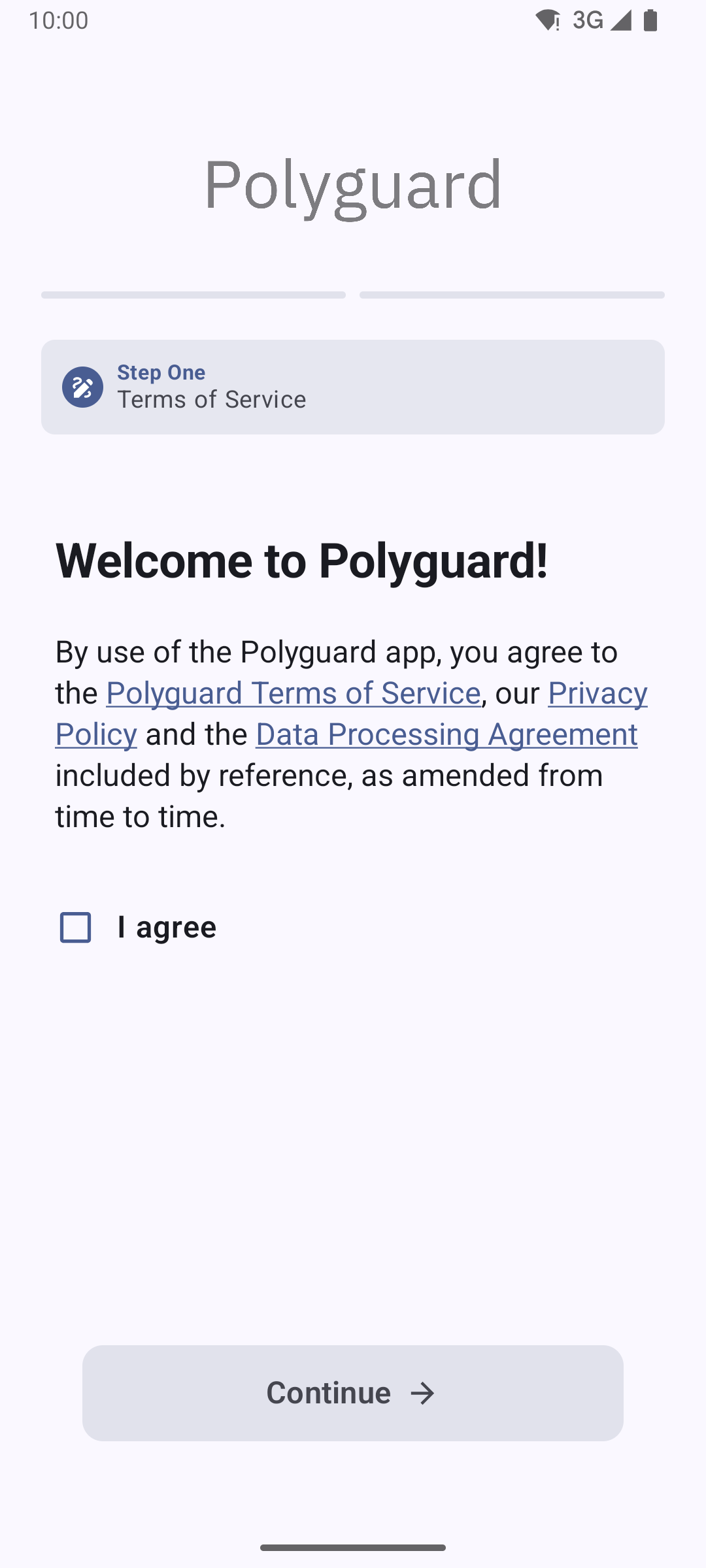
When you first open the app, you'll see a welcome screen with a short explanation of Polyguard's features. Tap Verify Identity, then review and accept the Terms of Service to proceed.
Step 3. Device Security Check
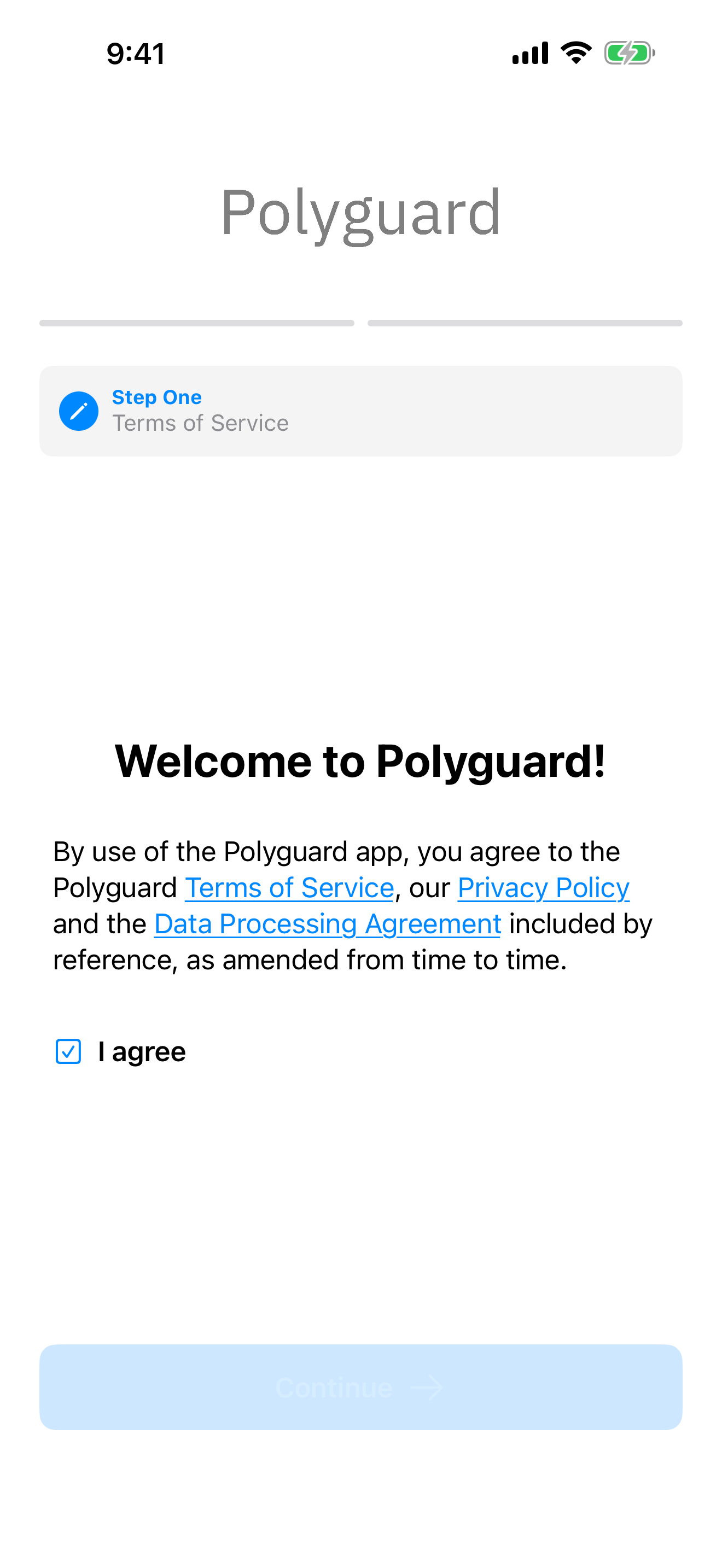
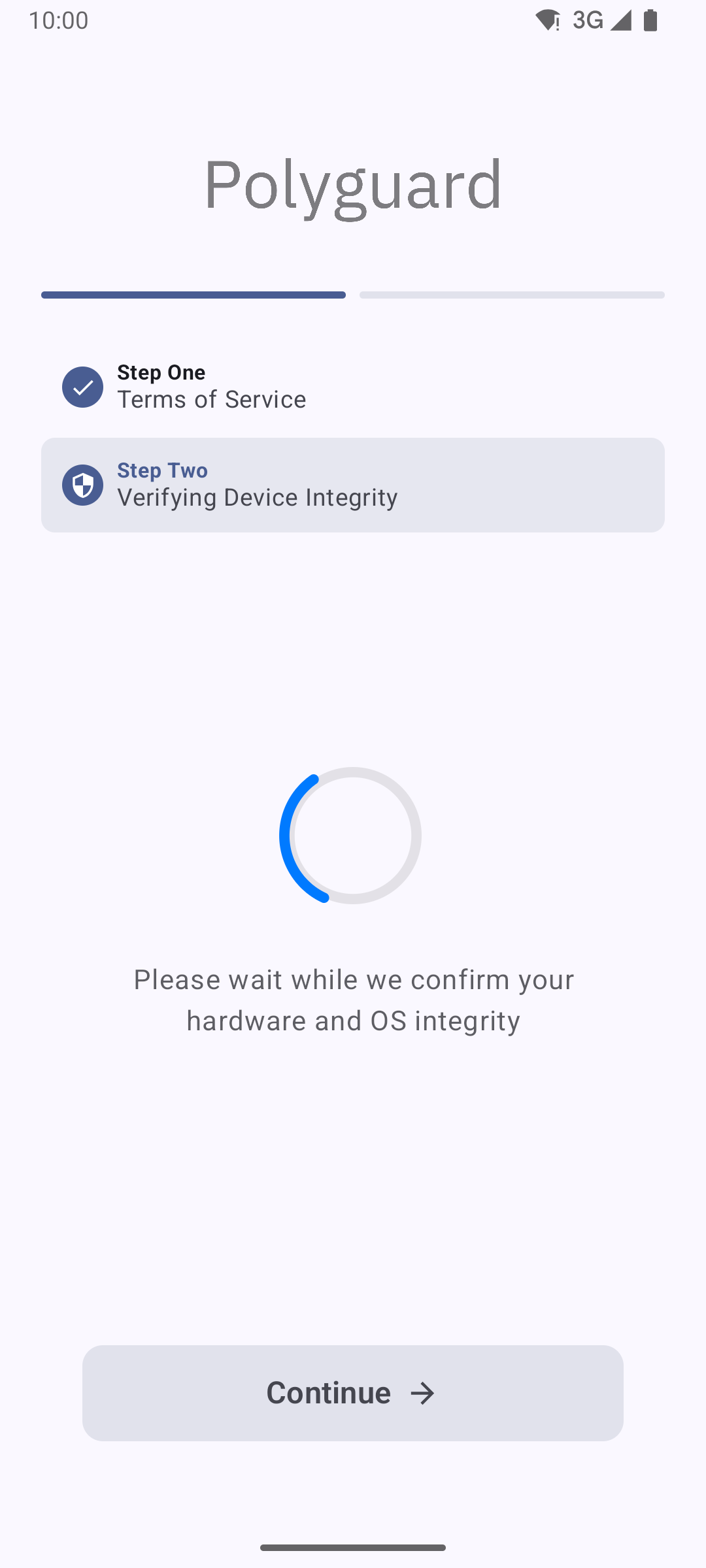
Next the app runs a quick security scan to confirm your phone is safe to use (not jailbroken, not rooted, or uncompromised).
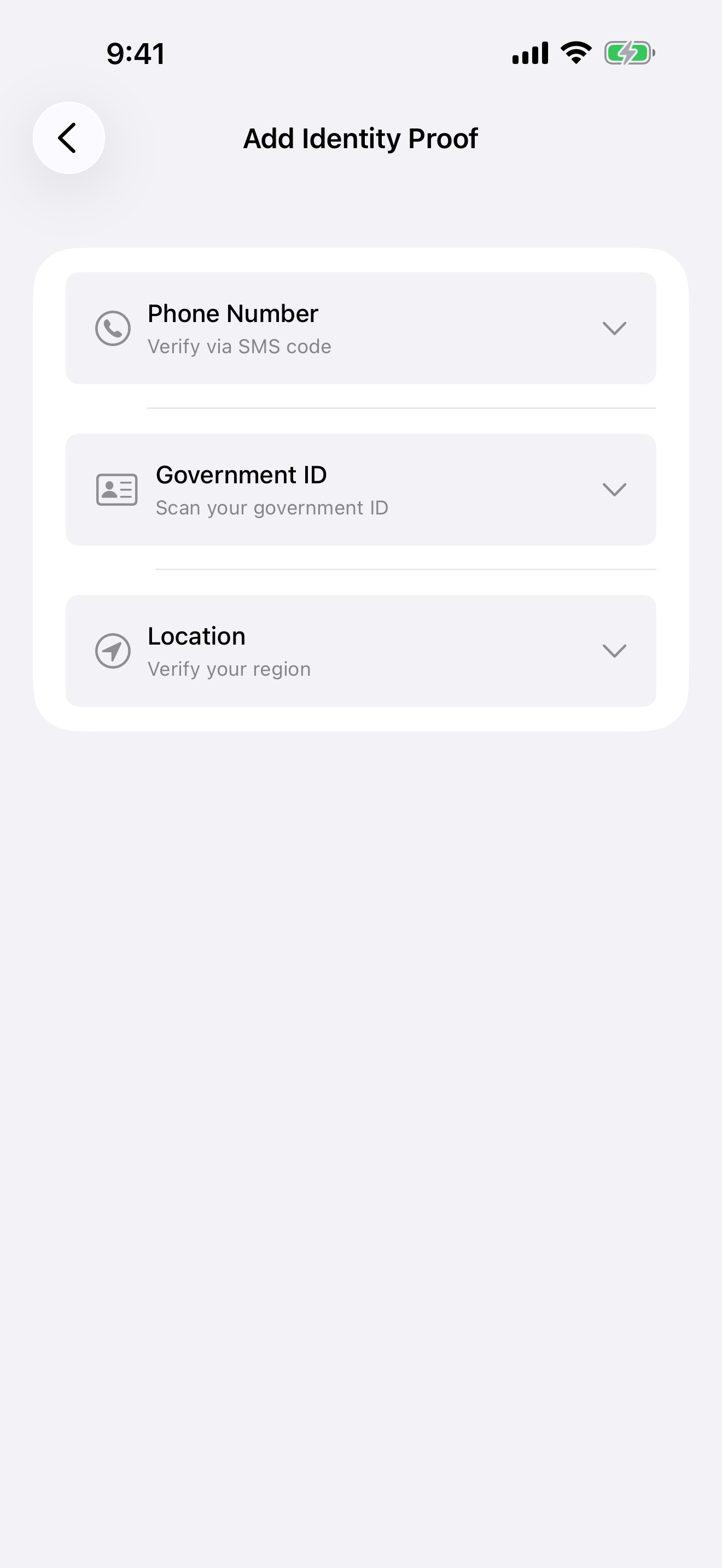
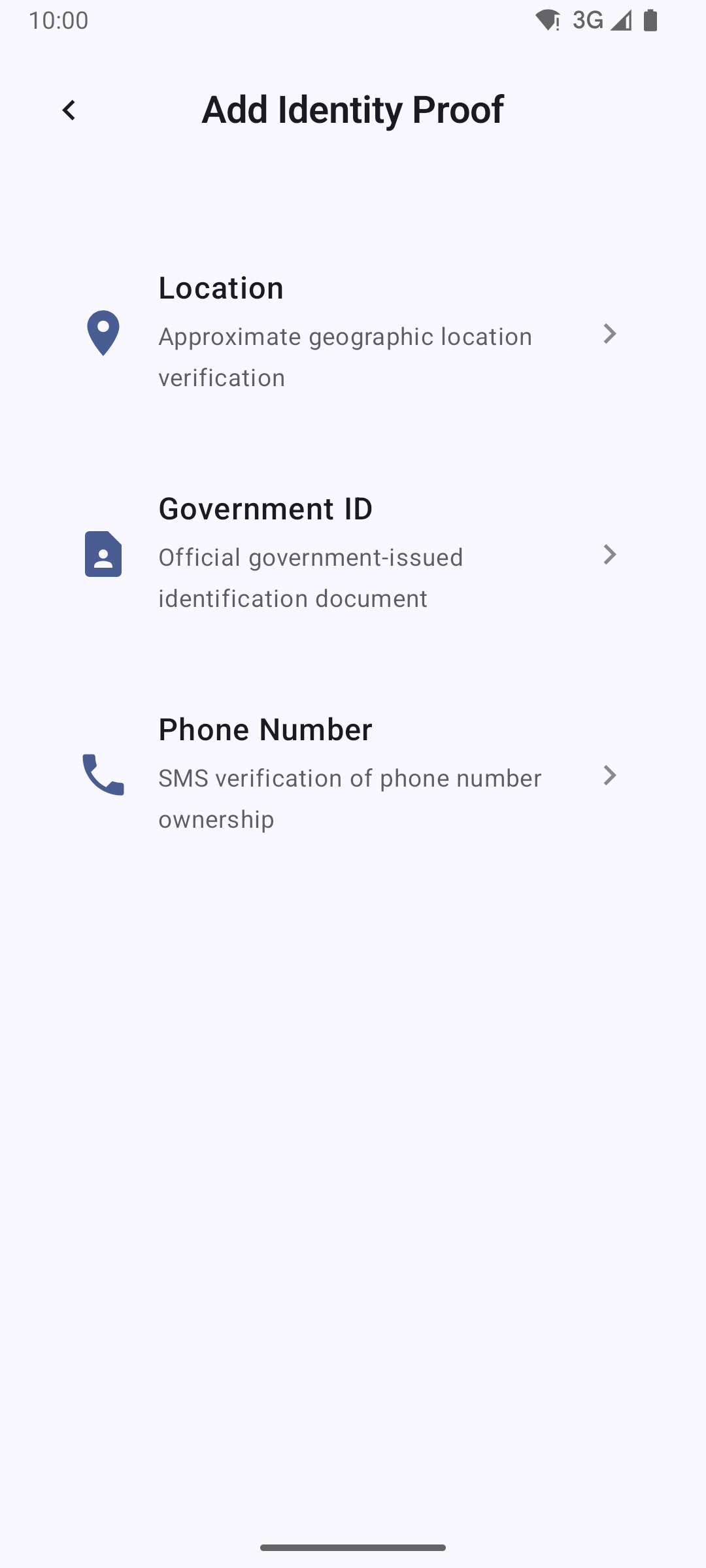
Step 4. Add Your Proofs
Polyguard can store these identity proofs on your phone:
- Phone number -- verify with a text message.
- Face biometric -- register your live 3D face.
- Government ID -- scan your driver's license, passport, or other valid ID.
You don't need to add any proofs now. Add a proof only when a Trust Check requires it. If you were invited to a meeting, you can scan the QR code provided and the app asks only for the proofs that meeting requires.
Sensitive data like your face and ID documents are stored securely on your device and cannot be read by Polyguard or anyone else.
That's it! You're now ready to use Polyguard for secure, verified interactions.